Use case · dark mode
Make a dark-background version of a Power BI report
For: Operations and executive teams who show reports on dark-themed screens or wall displays.
Dark reports are hard to get right by hand: the page goes dark, then half the labels disappear, the chart colours that worked on white turn muddy, and the light-grey cards glow.
There are two ways to get a dark version with Brand Makeover. If your PowerPoint template has a dark master, the kit is read from it directly (its colour map gives a dark background and light text). Otherwise, the Operational preset's “Dark background” option derives a dark kit from your brand: page and card colours in a very dark shade of your accent's hue, light text checked at 7:1, and accent, status and data colours lightened only as far as they need to stay visible.
By Nawaf Sharaf · Founder & Reliability Engineer · Updated
Demo: “Stores” in the Operational preset
A fictional retail report in a kit read from a fictional dark PowerPoint master, Operational preset with the dark background option on. Report and brand are fictional; the run is real: the same engine the tool runs in your browser.
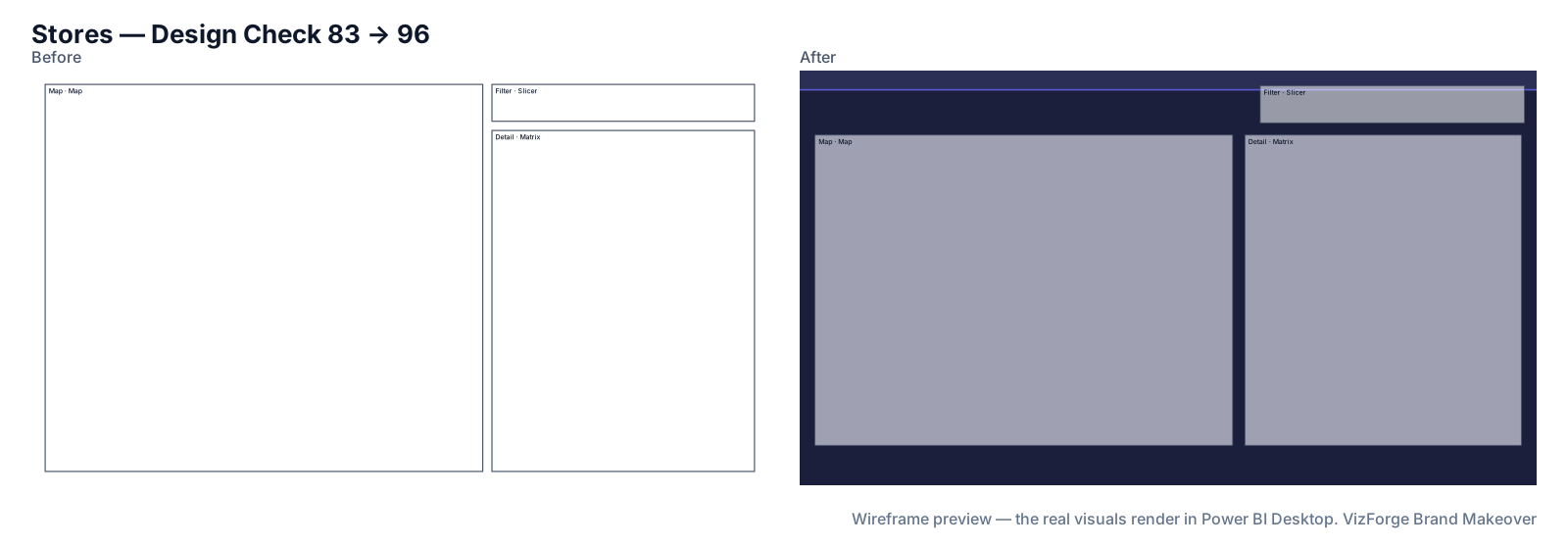
- Report
- Bluefin Outdoor Sales (F-PBIR-1), page “Stores”, 3 visuals
- Brand
- Dark master template (fictional), read from a PowerPoint master
- Options
- dark background
- Page size
- 1280×720 → 1920×1080
- Layout
- brand grid, fits the preset
- Design Check
- 83 → 96 on this page (Design Check 100 → 100, Readability 66 → 92); 81 → 85 across the report
- Changes
- 128 in the change log: 27 backgrounds, 6 formatting, 43 layout moves, 6 page size, 1 report settings, 18 tab order, 19 theme, 8 z-order
- Integrity
- ✓ 51 protected files checked unchanged (queries, filters, bookmarks, model)
| Rule | Before | After |
|---|---|---|
| Data colour contrast | 2/3 pass | 8/8 pass |
| Smallest text | 1/3 pass | 3/3 pass |
| Title size | 0/3 pass | 3/3 pass |
| Canvas coverage | 0/1 pass | 1/1 pass |
Preset advice on this page
- Tables are hard to read from across the room; cap them at about 10 rows. (Row counts need the data, so this is advice.)
- Wall displays are not touched; slicers are rarely used here.
Download this demo's theme.json (a standard Power BI report theme you can import into any report).
How to do it
- Drop a dark template, or any brand. A dark PowerPoint master gives a dark kit as it is; any other brand can be darkened by the preset.
- Pick Operational and tick “Dark background”. The kit's changes are listed in the change log, colour by colour.
- Review and download. Keep the original project; the dark version is a separate zip you unzip over a copy.
How the dark kit is made
Nothing new is invented: every colour keeps the hue of a colour in your brand.
- Page and cards: very dark shades of your accent's hue, with the cards a step lighter so panels stay visible.
- Text: your brand's own light page colour when it reads at 7:1 on the dark page, otherwise a near-white in your accent's hue.
- Accent, good / neutral / bad and data colours: lightened, hue kept, until each reaches 3:1 on the page and cards.
- A kit that is already dark (for example from a dark PowerPoint master) is kept as it is.
What never changes
Queries, measures, filters, interactions, drill-through bindings, visual and page names, conditional formatting, custom visuals' own formatting, phone layouts and the semantic model. Each is hashed before and after; any difference stops the download. Your project never leaves the browser tab (the optional paid AI plan sends only a page outline, never data or files). Brand fonts show only where installed.
Questions
Can I have the dark option with the Executive preset?
Not yet: the dark background is part of the Operational preset, designed for wall displays. A dark PowerPoint master gives a dark kit with any preset.
Do conditional formatting colours change?
No. Colours set by rules or measures are kept; check those visuals on the dark page in Desktop.
Related
Preset · Operational
Power BI layout for wall displays and TV dashboardsReadable from across the room: up to eight KPIs in two big rows with 56pt values, 16pt minimum text, 7:1 contrast and an optional dark background.
Use case · accessibility
Fix contrast, tab order and colour-only status in a Power BI reportCheck a Power BI report against contrast, colour-blind, tab-order and alt-text rules, then rebuild it with the Accessible preset. Free, in the browser.
Use case · brand refresh
Rebrand an existing Power BI reportNew brand, old reports? Apply your new colours, fonts, logo and page backgrounds to an existing Power BI project in the browser, with a change log.
Tool
PowerPoint template to Power BI themeOnly need the theme? theme.json and backgrounds from a .pptx or .potx.