Free page backgrounds
Power BI background images
Short answer
Where can I get a free Power BI background template?
Each of these 14 report page backgrounds is a free PNG or SVG at 1920×1080 or 1280×720, with the header and card panels drawn in. Set it in Format page → Canvas background with Image fit on Fill and 0% transparency, then place your visuals on the panels.
14 backgrounds
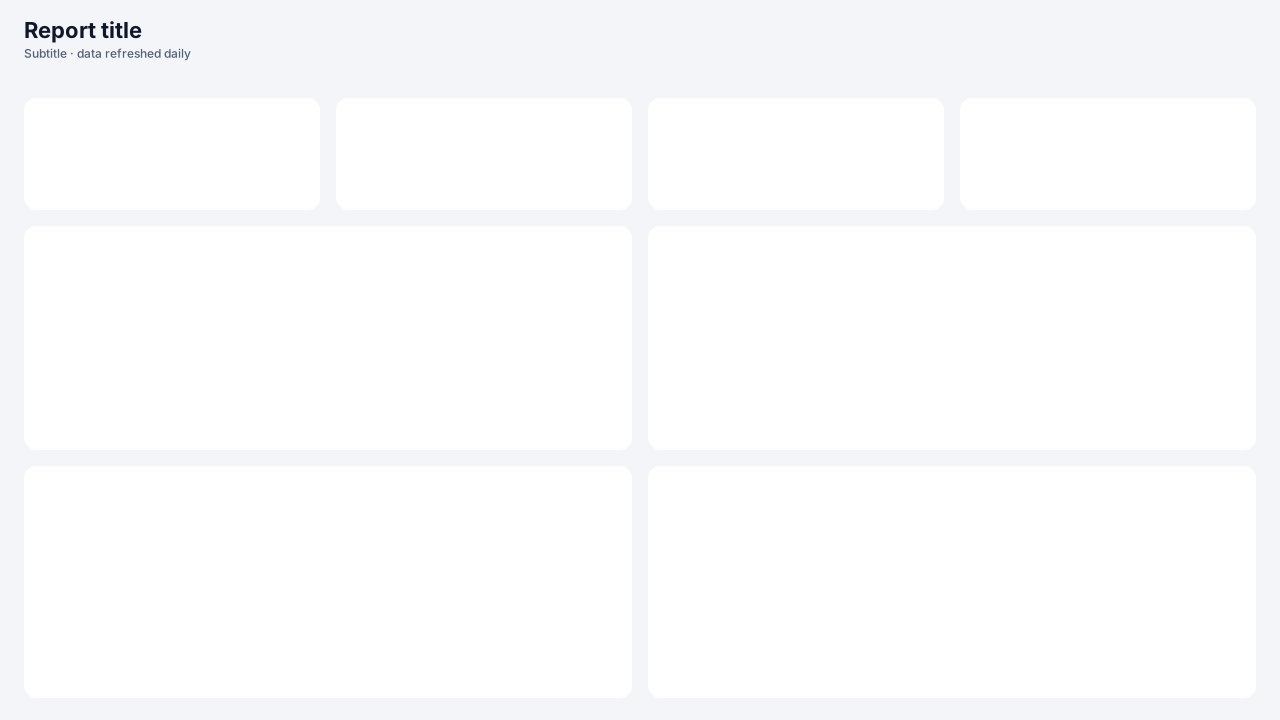
Clean Light Card Grid
1280×720Title + 4 KPI cards + 2×2 gridFree for commercial use
Midnight Glass Panels
1280×720Glass header + 3 KPIs + wide chart + 2 side panelsFree for commercial use
Ink Sidebar Navigation
1280×720Left nav rail + title + 3 KPIs + 2 chartsFree for commercial use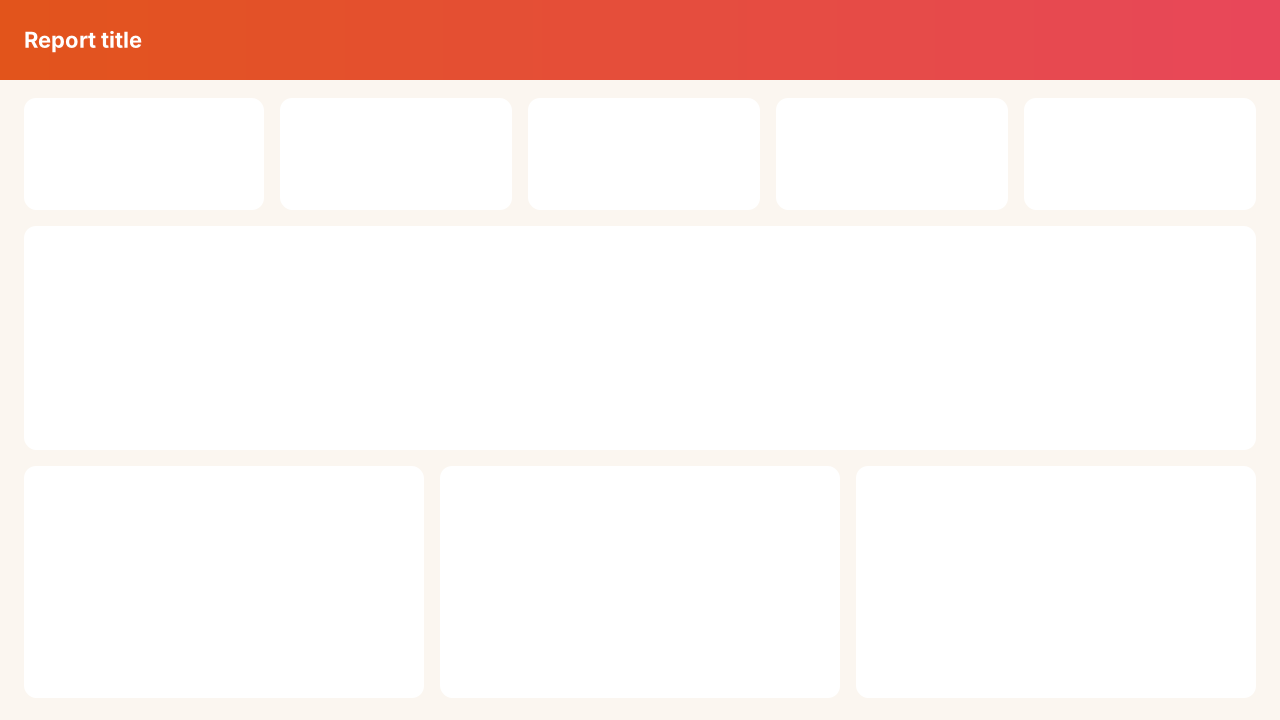
Sunset Gradient Header
1280×720Gradient band + 5 KPIs + full-width trend + 3 panelsFree for commercial use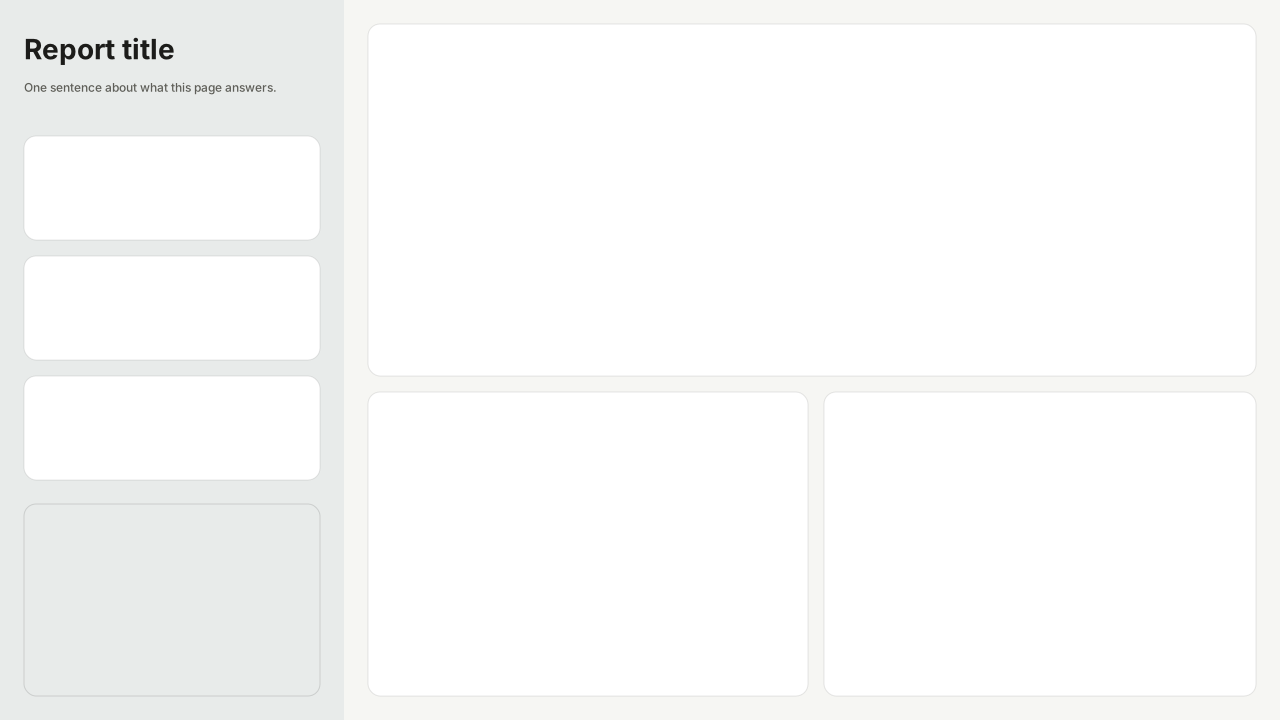
Nordic Split Panel
1280×720Left story column + 3 stacked tiles + right chart gridFree for commercial use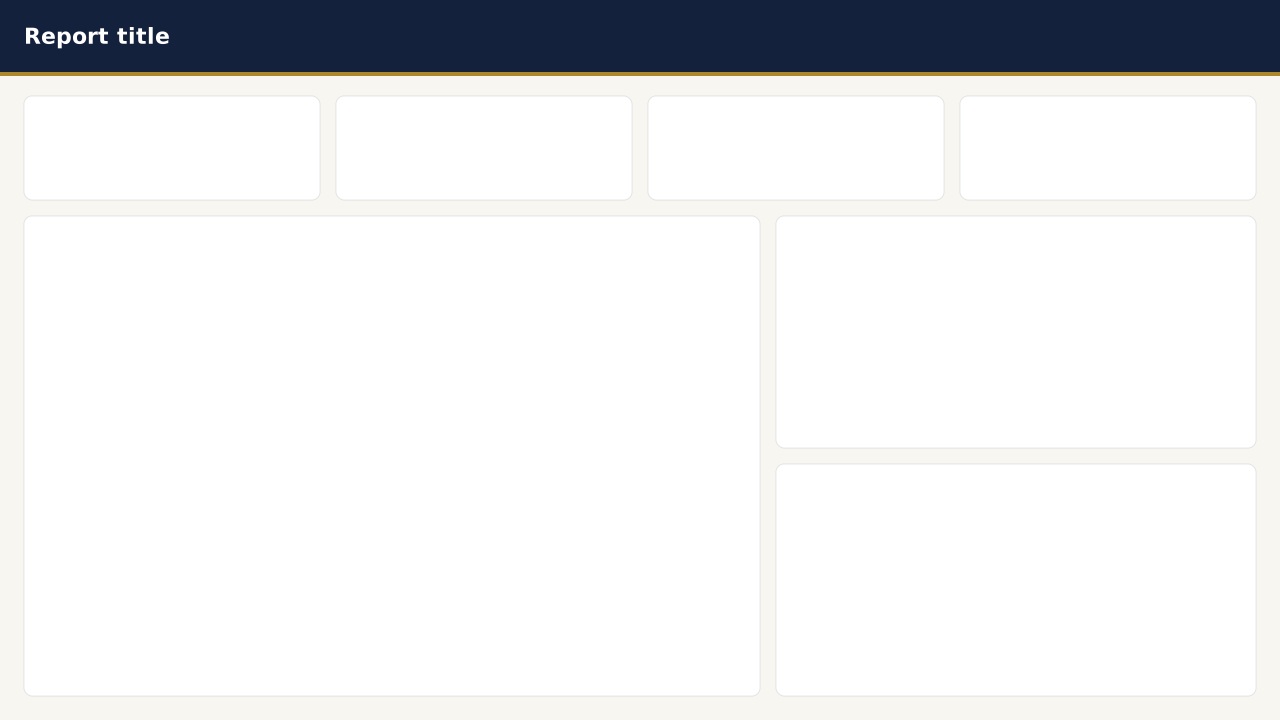
Ledger Navy Finance
1280×720Navy band + gold rule + 4 KPIs + matrix + 2 chartsFree for commercial use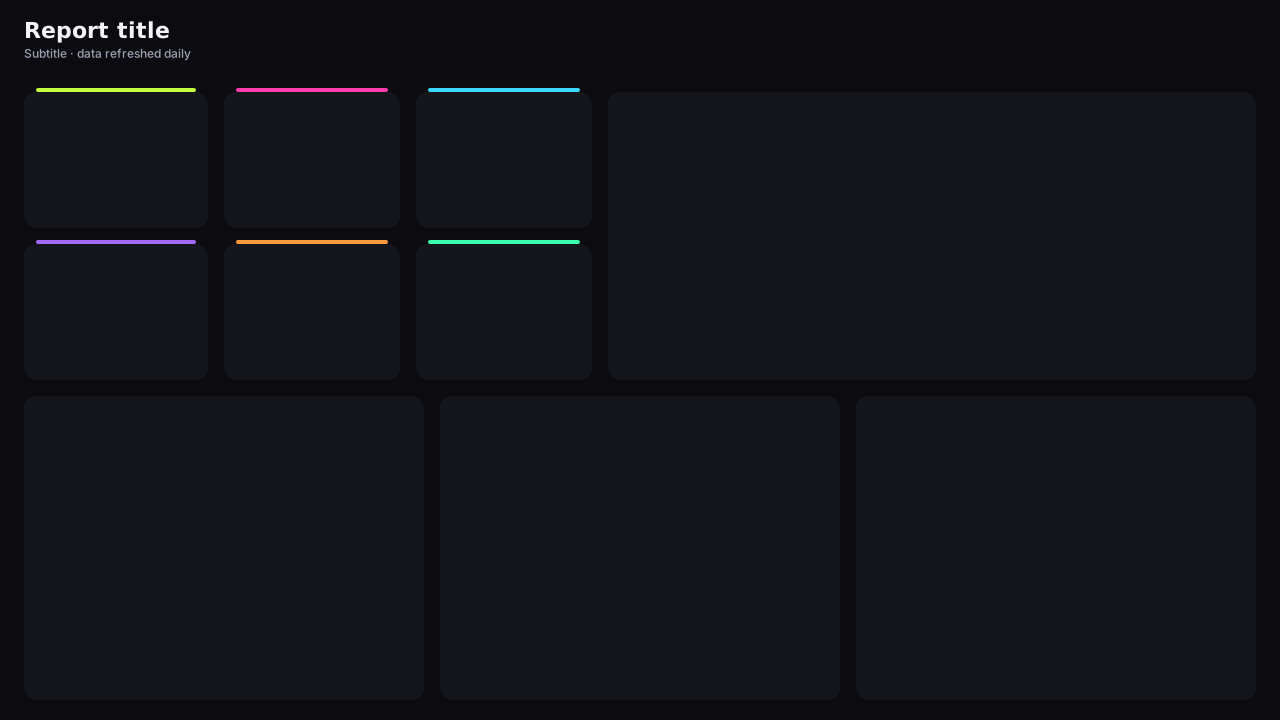
Neon Wallboard
1280×7203×2 striped tiles + trend + 3 panelsFree for commercial use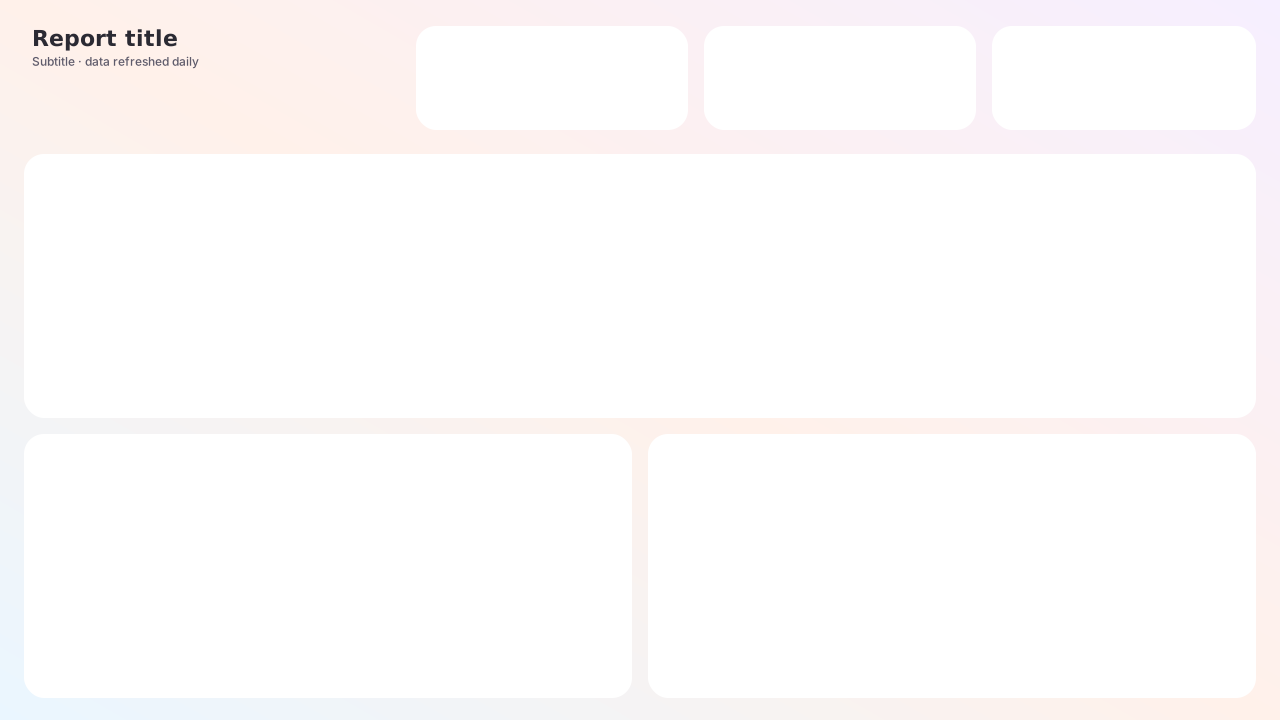
Pastel Soft Gradient
1280×720Gradient page + title + 3 KPIs + 3 rounded panelsFree for commercial use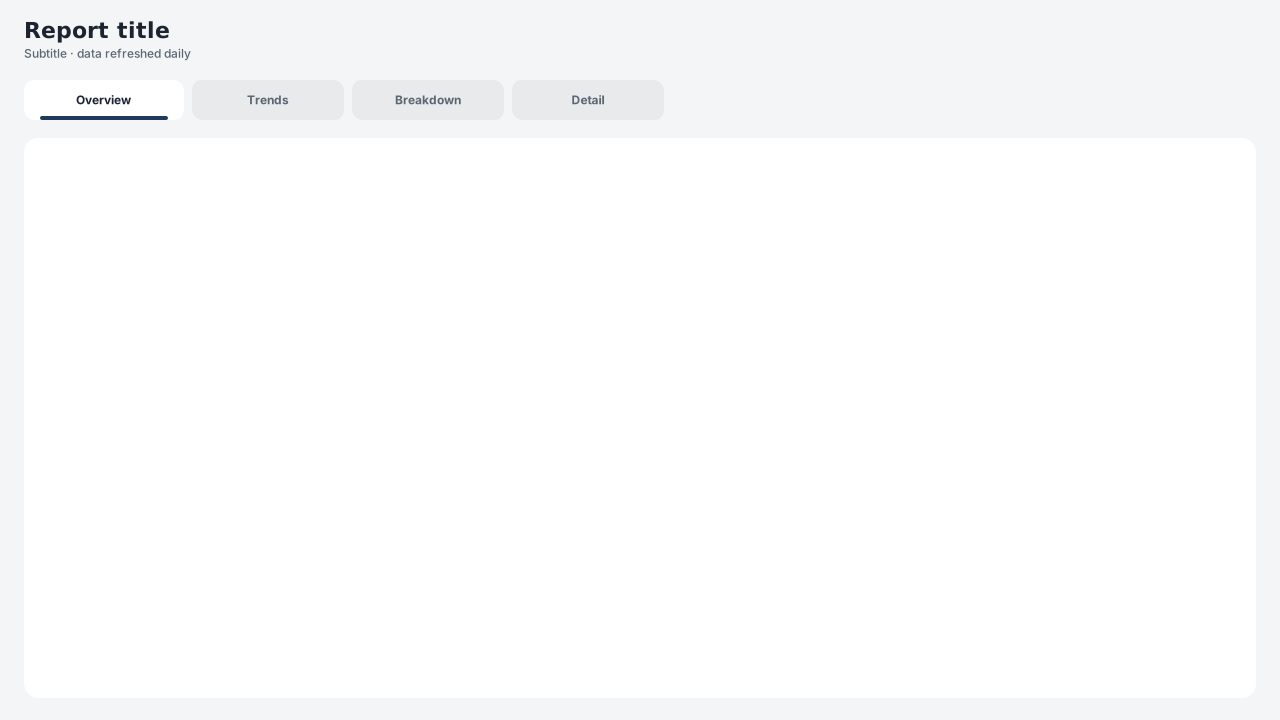
Slate Tabbed Report
1280×720Header + 4-tab strip + one large content cardFree for commercial use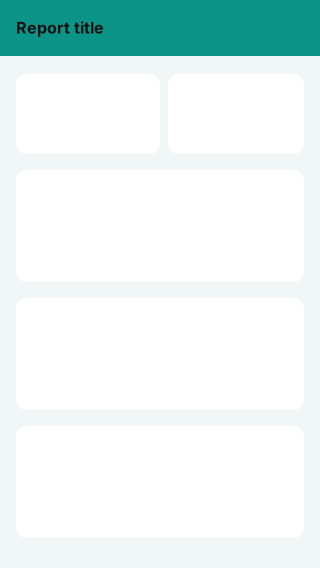
Mobile Portrait Cards
320×568Mobile: header + 2 KPIs + 3 stacked panelsFree for commercial use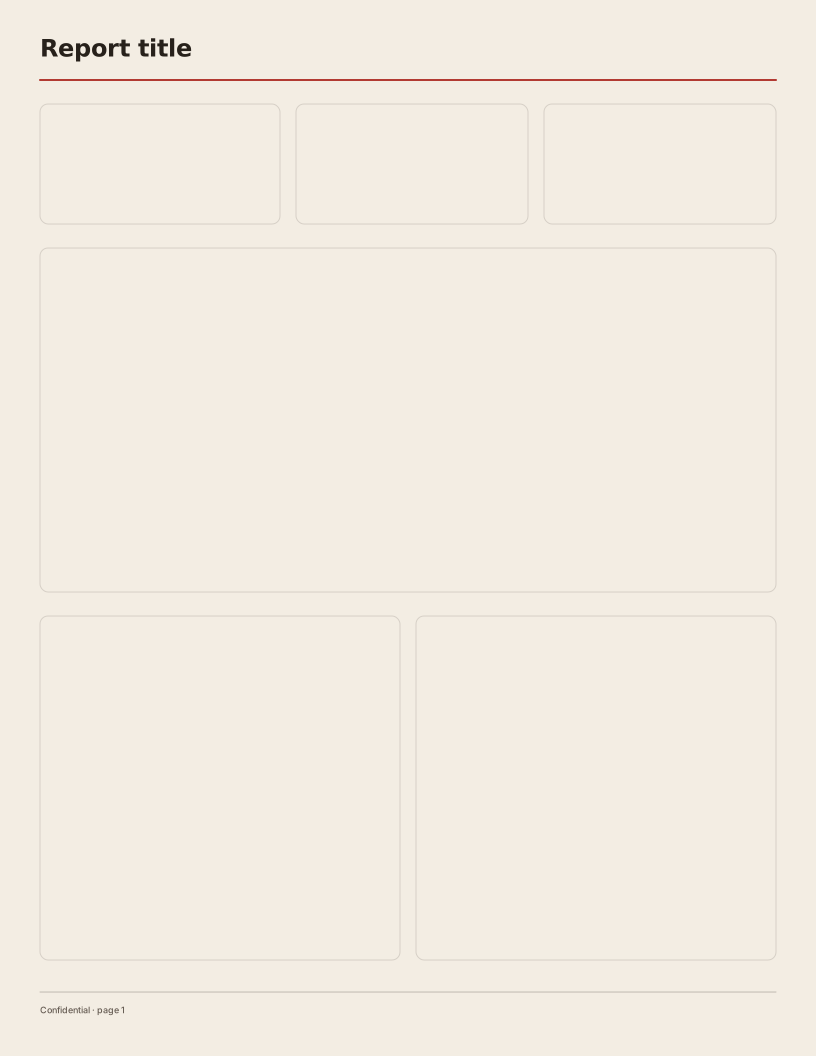
Paper Letter Report
816×1056Letter portrait: header rule + KPI band + 2 chart bands + footerFree for commercial use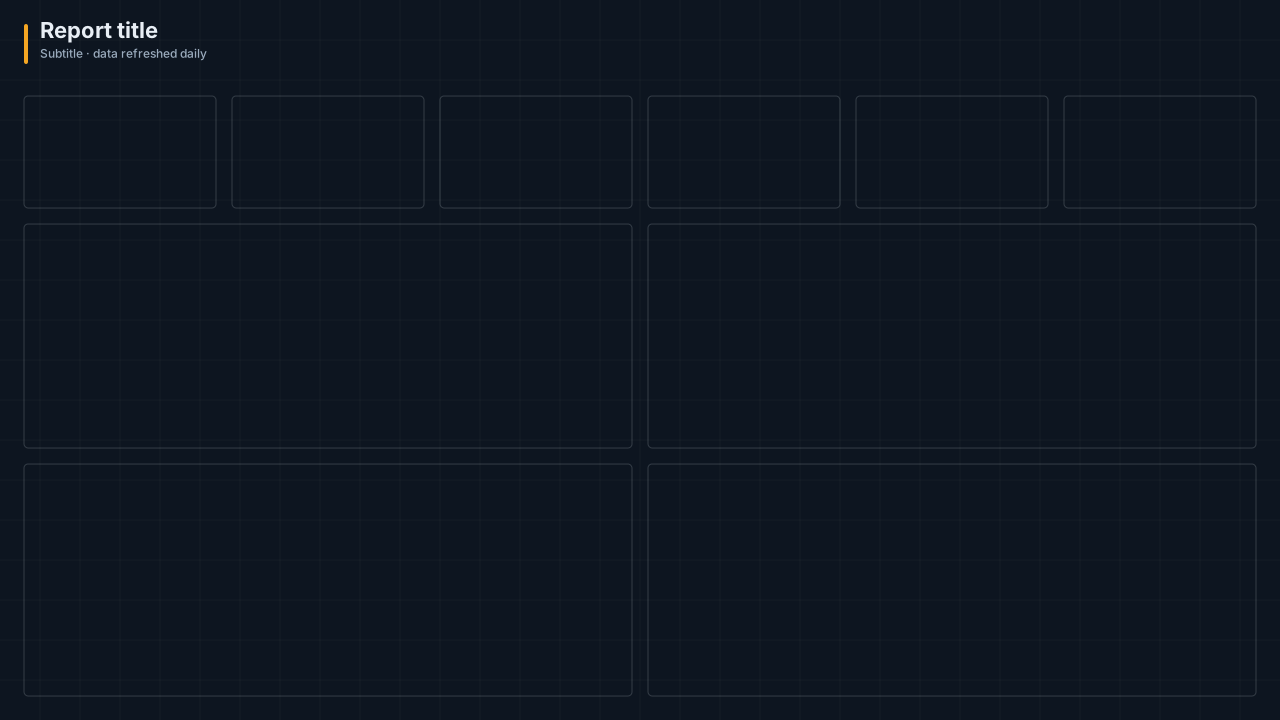
Cockpit HUD Dark
1280×720HUD grid + bracketed panels: 6 KPIs + 2 charts + 2 panelsFree for commercial use
Forest Minimal Canvas
1280×720Free-form gradient canvas with title areaFree for commercial use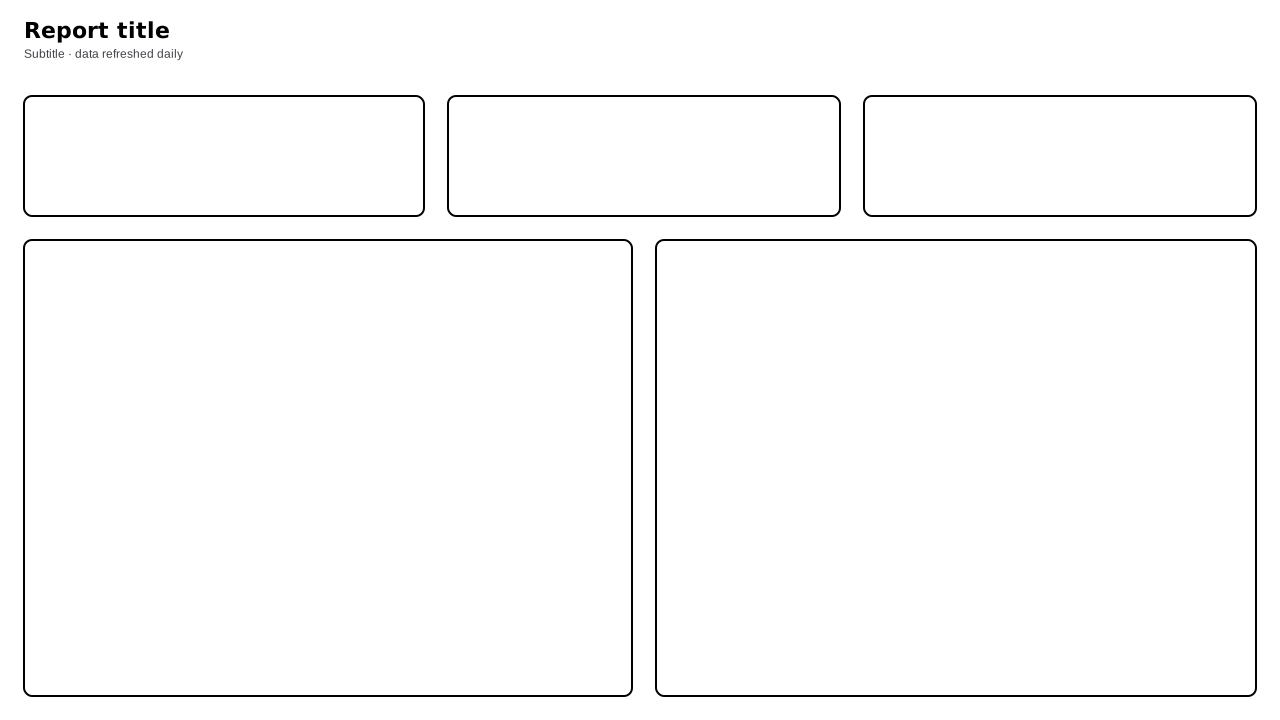
High Contrast Outline
1280×720Title + 3 KPIs + 2 large outlined panelsFree for commercial use
Power BI background image sizes
New pages in a Fluent 2 report default to 1920×1080; Classic and older reports use 1280×720. Both are 16:9. Export at the page size, or at 2× for sharper text and edges; Power BI scales the image down without blurring.
| Page type | Canvas (px) | 2× image (px) |
|---|---|---|
| 16:9 Full HD (Fluent 2 default for new pages) | 1920×1080 | 3840×2160 |
| 16:9 HD (Classic and older reports) | 1280×720 | 2560×1440 |
| 4:3 | 960×720 | 1920×1440 |
| Letter | 816×1056 | 1632×2112 |
| Mobile layout | 320×568 | 640×1136 |
How to set a background image in Power BI
- 1
Download the PNG
Use the 1920×1080 PNG for a new page in a Fluent 2 report (the default size for new pages), or the 2× PNG for a 1280×720 Classic page. Power BI scales the image to the canvas.
- 2
Open Canvas background
Select the report page, open Format page → Canvas background and choose Browse.
- 3
Set Fill and 0% transparency
Set Image fit to Fill and transparency to 0% so the image covers the page exactly.
- 4
Make visuals transparent
Turn off each visual's background and border, then size it to the panel positions listed on the background's page.
Frequently asked questions
What size should a Power BI background image be?
Match the page canvas. New pages in a Fluent 2 report default to 1920×1080; Classic and older reports use 1280×720. Both are 16:9. Export at the page size, or at 2× for crisper text on high-resolution screens. Downloads here are available at 1920×1080, 1280×720 and 2×.
How do I set a background image in Power BI?
Select the page, then in Format page → Canvas background choose Browse, pick the image, set Image fit to Fill and transparency to 0%. In theme JSON the labels differ: JSON “Fill” is UI Fill, JSON “Fit” is UI Stretch and JSON “Normal” is UI Fit.
Should I use PNG or SVG?
Use the PNG for the canvas background: it renders identically on every machine and the 2× version stays sharp when the report is zoomed. The SVG is resolution-independent and is the better choice for editing the design in a vector tool.
Why do my visuals hide the background panels?
Visuals have their own background and border turned on by default. Turn off Format → General → Effects → Background and Visual border for each visual, or apply the matching theme JSON, which does it for you.
Need a chart Power BI doesn’t ship?
Describe it in plain English and VizForge generates a custom visual as a .pbiviz file, with its TypeScript source. In the design studio, hand any visual slot to the AI and the brief carries the slot size and your brand colours. Sankey, Gantt, bullet, waterfall and more: see the visual catalog.
Generate a custom visual with AI · starts free →Keep exploring
61 hand-designed Power BI page layouts by department.
80 contrast-checked theme JSON files, light and dark.
3,034 icons in 40 categories as SVG, PNG, DAX or theme icon JSON.
Design a report page and export it to Power BI.
Need a different layout?
Draw your own background in the design studio: panels, header bands, logos and icons on an 8px grid, exported at exactly the right size.
The design studio for Power BI. Free, in your browser, no sign-up.