Light Power BI background · 320×568
Mobile Portrait Cards
Power BI mobile layout background (portrait): header, two KPI cards and stacked chart panels sized for the phone canvas. Healthcare-calm palette.
By Nawaf Sharaf · Founder & Reliability Engineer · Updated
Free for commercial use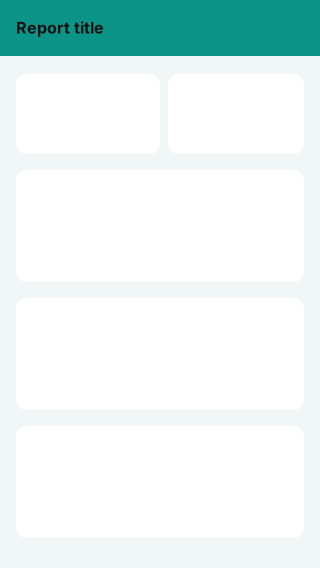
Free, no sign-up. 1920×1080 fits a new page in a Fluent 2 report; 1280×720 and 2× fit Classic pages. Downloads include a small “Made with VizForge” mark; sign in to the studio to remove it.
About this background
Power BI's mobile layout (View → Mobile layout) has its own canvas, and it can have its own background. This one is sized for the portrait phone canvas: a header strip, two KPI cards side by side and three stacked chart panels.
Set it on the mobile layout canvas, then drag your visuals from the Page visuals pane onto the panels. Phone readers scroll, so keep the most important visual in the first panel below the KPIs.
The same palette as the desktop Healthcare Calm theme keeps the two layouts consistent.
Where to place your visuals
Page pixels. In Power BI select a visual, open Format → General → Properties → Size and position and enter these values (inset by 16px for padding).
| Visual | X | Y | Width | Height |
|---|---|---|---|---|
| KPI tile 1 | 16 | 72 | 144 | 80 |
| KPI tile 2 | 168 | 72 | 136 | 80 |
| Chart panel 1 | 16 | 168 | 288 | 112 |
| Chart panel 2 | 16 | 296 | 288 | 112 |
| Chart panel 3 | 16 | 424 | 288 | 112 |
VizForge AI · custom visuals
Generate a custom visual for this slot
Pick a panel and VizForge AI writes a custom visual (.pbiviz, with TypeScript source) sized to it, in this background's colours, with a transparent background so the panel shows through.
Panel at 16, 168 · 288×112 px
1, 2 or 5 credits depending on the brief · 5 free on signup. Sign in or create a free account on the next screen; the brief is saved for 30 minutes.
A Power BI custom visual titled "Chart panel 1". It sits in a 288×112 px slot on a designed report page. Match the report's brand: data colours #0D9488, #3B82F6, #8B5CF6, #E06814, #E11D48, #1CA24D; background #FFFFFF; text #0F2A2E; font Segoe UI. Transparent visual background so the page design shows through; no visual border. It sits on a panel of the Mobile Portrait Cards page background.
Matching theme
The Theme JSON button above downloads this palette.
Set this background in Power BI Desktop
- 1
Download the PNG
Take the 2× PNG (640×1136) for crisp edges.
- 2
Open Canvas background
Select the page, then Format page → Canvas background → Browse, and pick the file.
- 3
Fill, 0% transparency
Set Image fit to Fill and transparency to 0% so the panels line up with the page grid.
- 4
Place visuals on the panels
Turn off each visual's background and border, then use the positions above.
Other themes for this background
Other light themes that work on this background. Download the theme JSON from its page and import it after setting the background image.
Light theme
Paper & ClayWarm beige Power BI theme with clay red, indigo and ochre data colours; a softer alternative to grey corporate themes for consulting decks and client reports.
Light theme
Arctic TealCool light Power BI theme with a deep teal lead, slate text and ice-grey page; AA-checked data colours for IT, healthcare and service reports.
Need a chart Power BI doesn’t ship?
Describe it in plain English and VizForge generates a custom visual as a .pbiviz file, with its TypeScript source. In the design studio, hand any visual slot to the AI and the brief carries the slot size and your brand colours. Sankey, Gantt, bullet, waterfall and more: see the visual catalog.
Generate a custom visual with AI · starts free →Questions about this background
What size is the Mobile Portrait Cards background?
It is designed for a 320×568 pixel Power BI page. The standard PNG is exactly that size; the 2× PNG is 640×1136 for sharper edges on high-resolution screens.
Where do I place my visuals on this background?
Use the 5 panel positions in the table on this page. Inset each visual by about 16 pixels inside its panel so rounded corners and shadows stay visible.
How do I set a background image in Power BI?
Select the page, then in Format page → Canvas background choose Browse, pick the image, set Image fit to Fill and transparency to 0%. In theme JSON the labels differ: JSON “Fill” is UI Fill, JSON “Fit” is UI Stretch and JSON “Normal” is UI Fit.
Why do my visuals hide the background panels?
Visuals have their own background and border turned on by default. Turn off Format → General → Effects → Background and Visual border for each visual, or apply the matching theme JSON, which does it for you.
More backgrounds
Keep exploring
Page backgrounds at 1280×720 and 1920×1080 with visual positions.
61 hand-designed Power BI page layouts by department.
80 contrast-checked theme JSON files, light and dark.
3,034 icons in 40 categories as SVG, PNG, DAX or theme icon JSON.
Make a background that fits your report
Draw panels, header bands and navigation rails on the Power BI grid in the design studio, add your logo, and export at 1× or 2×.
The design studio for Power BI. Free, in your browser, no sign-up.