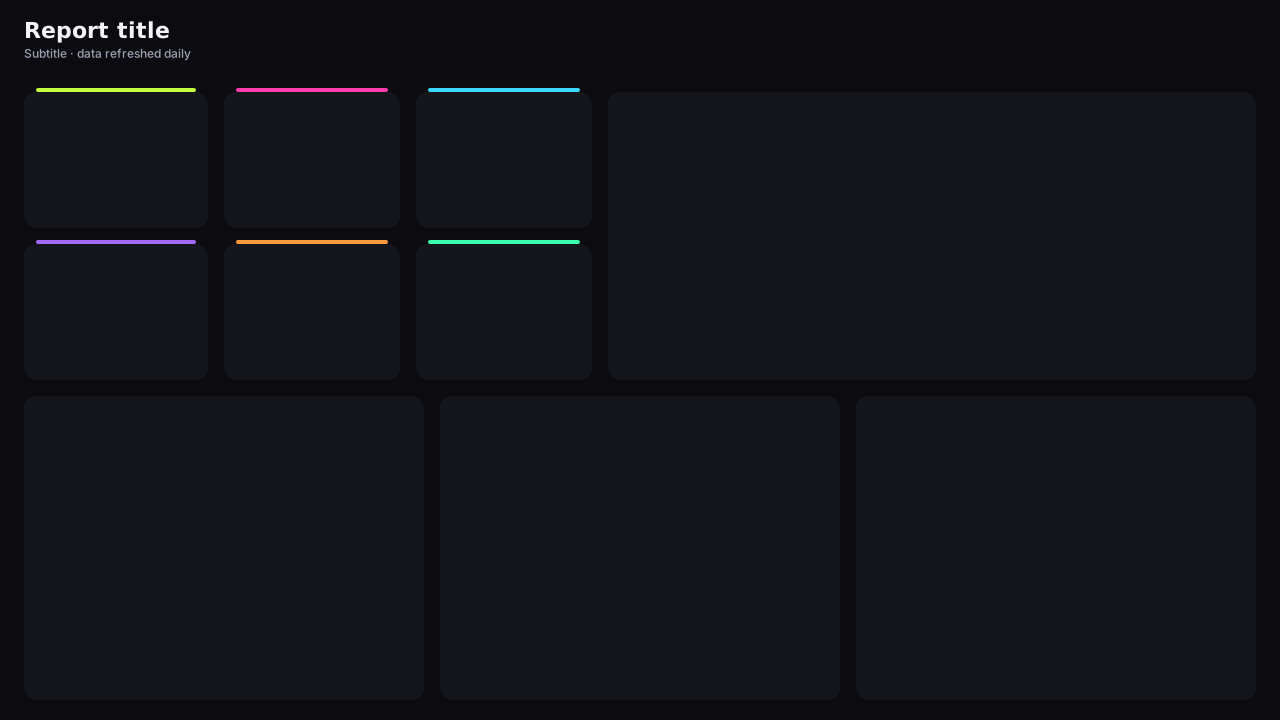
Dark Power BI background · 1280×720
Forest Minimal Canvas
Minimal dark green Power BI background: a subtle radial gradient, a title area and one thin accent line. Free-form canvas for your own layout.
By Nawaf Sharaf · Founder & Reliability Engineer · Updated
Free for commercial use
Free, no sign-up. 1920×1080 fits a new page in a Fluent 2 report; 1280×720 and 2× fit Classic pages. Downloads include a small “Made with VizForge” mark; sign in to the studio to remove it.
About this background
Not every report wants panels. This background is a deep green radial gradient, brightest at the top right, with a title area and a single accent line, leaving the canvas free for your own arrangement of visuals.
Because there are no panels, turn visual backgrounds on with the theme's surface colour at 0–10% transparency, or leave them off for a floating look. Either reads well on the gradient.
The gradient runs from #1F3A28 at the top-right corner to the Forest Night page colour, subtle enough that it never fights a chart.
Matching theme
The Theme JSON button above downloads this palette.
Set this background in Power BI Desktop
- 1
Download the PNG
Take the 1920×1080 PNG for a new page in a Fluent 2 report, or the 2× PNG (2560×1440) for crisp edges on a 1280×720 Classic page.
- 2
Open Canvas background
Select the page, then Format page → Canvas background → Browse, and pick the file.
- 3
Fill, 0% transparency
Set Image fit to Fill and transparency to 0% so the panels line up with the page grid.
- 4
Place visuals on the panels
Turn off each visual's background and border, then use the positions above.
Other themes for this background
Other dark themes that work on this background. Download the theme JSON from its page and import it after setting the background image.
Dark theme
Obsidian GoldLuxury dark Power BI theme: obsidian page, champagne gold lead colour and ivory, bronze and steel data colours for wealth and premium brand reports.
Dark theme
Tol Bright (Dark)Colour-blind-safe dark Power BI theme using Paul Tol's bright qualitative scheme on charcoal: seven distinguishable data colours plus grey, tested for CVD.
Need a chart Power BI doesn’t ship?
Describe it in plain English and VizForge generates a custom visual as a .pbiviz file, with its TypeScript source. In the design studio, hand any visual slot to the AI and the brief carries the slot size and your brand colours. Sankey, Gantt, bullet, waterfall and more: see the visual catalog.
Generate a custom visual with AI · starts free →Questions about this background
What size is the Forest Minimal Canvas background?
It is designed on a 1280×720 pixel Power BI page (the Classic report size) and downloads at 1280×720, at 1920×1080 for a new page in a Fluent 2 report, and at 2× (2560×1440) for sharper edges on high-resolution screens.
Where do I place my visuals on this background?
This background has no fixed panels. Place visuals freely and turn their backgrounds on or off to suit the design.
How do I set a background image in Power BI?
Select the page, then in Format page → Canvas background choose Browse, pick the image, set Image fit to Fill and transparency to 0%. In theme JSON the labels differ: JSON “Fill” is UI Fill, JSON “Fit” is UI Stretch and JSON “Normal” is UI Fit.
Why do my visuals hide the background panels?
Visuals have their own background and border turned on by default. Turn off Format → General → Effects → Background and Visual border for each visual, or apply the matching theme JSON, which does it for you.
More backgrounds


Keep exploring
Page backgrounds at 1280×720 and 1920×1080 with visual positions.
61 hand-designed Power BI page layouts by department.
80 contrast-checked theme JSON files, light and dark.
3,034 icons in 40 categories as SVG, PNG, DAX or theme icon JSON.
Make a background that fits your report
Draw panels, header bands and navigation rails on the Power BI grid in the design studio, add your logo, and export at 1× or 2×.
The design studio for Power BI. Free, in your browser, no sign-up.