Report design guide
A custom theme for the Fluent 2 base theme
By Nawaf Sharaf · Founder & Reliability Engineer · Updated
New Power BI reports start on the Fluent 2 base theme; Classic 2026 was the previous default and Classic 2018 covers legacy reports. A custom theme JSON sits on top of the base theme: anything it sets wins, and everything it leaves out comes from Fluent 2, including grey wallpaper and page background, visual titles on, axis titles off, more padding and rounded corners. So set the page background and wallpaper, visual backgrounds and text classes explicitly, then import the file from the Design ribbon → Import theme.
A theme that overrides Fluent 2's defaults
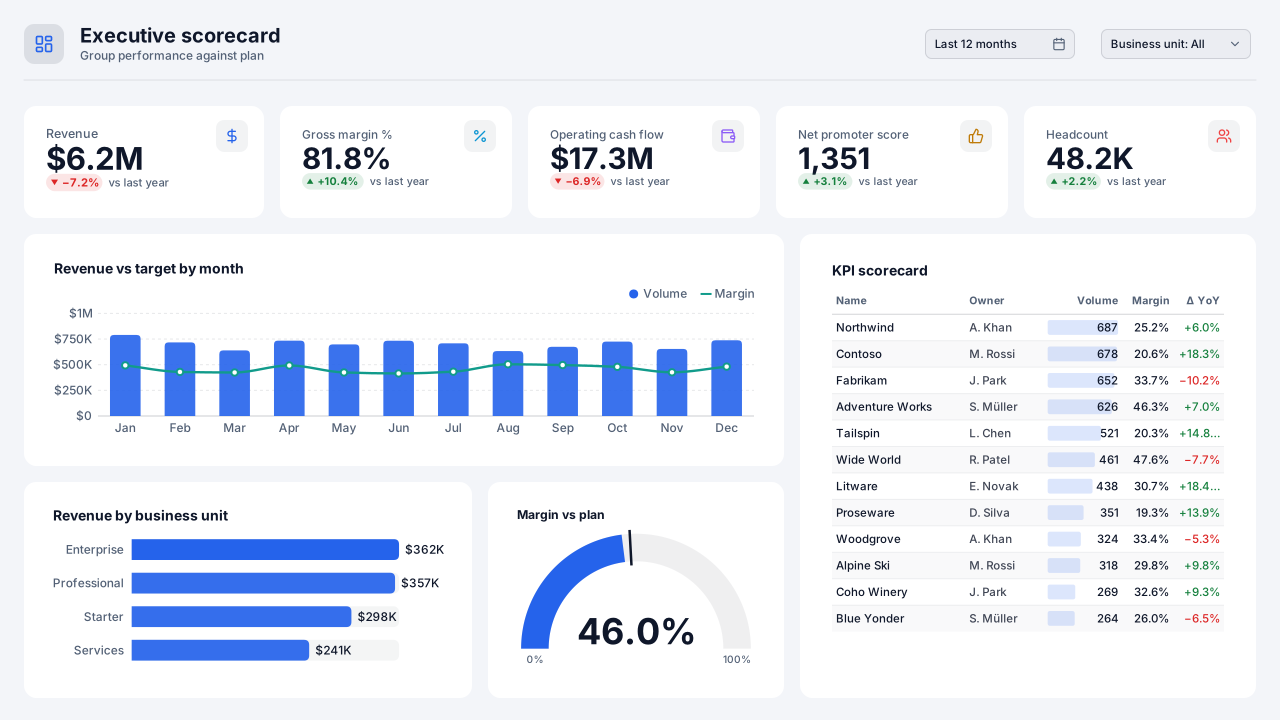
Below is the theme JSON the Design Studio writes for the Boardroom Blue theme, generated when this page was built. The table lists each Fluent 2 default it replaces; anything not in the file still comes from Fluent 2.
| Theme key | Fluent 2 without a theme | Boardroom Blue sets |
|---|---|---|
| Series colours (dataColors) | The base theme's palette | 8 brand colours, contrast-checked |
| Text and canvas colour (foreground, background) | The base theme's ink and surface | #0F172A on #F3F5F9 |
| Sentiment (good, neutral, bad) | The base theme's KPI colours | #15803D / #B45309 / #DC2626 |
| Page background and wallpaper | Grey wallpaper and page background | Set to the theme background, so new pages aren't grey |
| Visual background | Drawn, with Fluent 2 padding and rounded corners | Off, so a designed background shows through |
| Visual titles | On | On, in the theme's title font and colour |
| Text classes (callout, title, header, label) | The base theme's fonts and sizes | callout, title, header, label |
Boardroom Blue.json (1,095 characters)
{
  "name": "Boardroom Blue",
  "dataColors": [
    "#2563EB",
    "#0D95D2",
    "#119B8B",
    "#8B5CF6",
    "#BF7B09",
    "#EF4444",
    "#64748B",
    "#EC4899"
  ],
  "background": "#F3F5F9",
  "foreground": "#0F172A",
  "tableAccent": "#2563EB",
  "good": "#15803D",
  "neutral": "#B45309",
  "bad": "#DC2626",
  "maximum": "#15803D",
  "center": "#B45309",
  "minimum": "#DC2626",
  "null": "#526075",
  "textClasses": {
    "callout": {
      "fontFace": "Segoe UI",
      "fontSize": 30,
      "color": "#0F172A"
    },
    "title": {
      "fontFace": "Segoe UI",
      "fontSize": 13,
      "color": "#0F172A"
    },
    "header": {
      "fontFace": "Segoe UI",
      "fontSize": 11,
      "color": "#0F172A"
    },
    "label": {
      "fontFace": "Segoe UI",
      "fontSize": 10,
      "color": "#0F172A"
    }
  },
  "visualStyles": {
    "page": {
      "*": {
        "background": [
          {
            "color": {
              "solid": {
                "color": "#F3F5F9"
              }
            },
            "transparency": 0
          }
        ],
        "outspace": [
          {
            "color": {
              "solid": {
                "color": "#F3F5F9"
              }
            },
            "transparency": 0
          }
        ]
      }
    },
    "*": {
      "*": {
        "background": [
          {
            "show": false,
            "color": {
              "solid": {
                "color": "#FFFFFF"
              }
            },
            "transparency": 100
          }
        ],
        "border": [
          {
            "show": false,
            "color": {
              "solid": {
                "color": "#D4D5D9"
              }
            },
            "radius": 8
          }
        ],
        "title": [
          {
            "show": true,
            "fontFamily": "Segoe UI",
            "fontSize": 13,
            "fontColor": {
              "solid": {
                "color": "#0F172A"
              }
            },
            "alignment": "left"
          }
        ],
        "dropShadow": [
          {
            "show": false
          }
        ]
      }
    }
  }
}Step by step
- 1
Check which base theme the report uses
Reports created recently use Fluent 2; older reports may still be on Classic 2026 or Classic 2018. The base theme can be switched or updated from the theme settings. Compare like with like: a theme looks different on a Classic report because the values it doesn't set come from a different base.
- 2
Set the colours every visual reads
dataColors (the series palette), foreground, background, tableAccent and the sentiment colours good, neutral and bad. These are the keys a chart, table or KPI visual uses before any per-visual style.
- 3
Set the page background and wallpaper
Fluent 2 gives pages a grey wallpaper and background. If you use a background image or a brand colour, set visualStyles → page → * → background and outspace so every new page gets them instead of the grey.
- 4
Decide on visual containers
Fluent 2 draws visuals with more padding, rounded corners and titles on. Over a designed background, turn the visual background off (visualStyles → * → * → background show false) and keep or remove borders and shadows to match your panels.
- 5
Set the text classes
callout, title, header and label set the font face, size and colour for KPI numbers, visual titles, table headers and data labels. Use fonts installed on every viewer's machine, such as Segoe UI.
- 6
Import and check
In Power BI Desktop use the Design ribbon → Import theme; in the service, edit the report and use the Theme pane. Then check a table, a slicer and a chart with labels. Visuals formatted by hand keep their formatting until you use Reset to default.
Frequently asked questions
Is Fluent 2 the default Power BI theme now?
Yes. Microsoft Learn lists Fluent 2 as the default base theme for new reports, Classic 2026 as the previous default and Classic 2018 for legacy reports.
Do I need a different theme JSON for Fluent 2?
The file format is the same. What changes is the base underneath it: anything your theme doesn't set now comes from Fluent 2. Themes that only set dataColors will show Fluent 2's grey page and its visual styling, so set the page and visual container keys too.
Why is my page grey after importing a theme?
The theme doesn't set a page background or wallpaper, so Fluent 2's grey shows through. Add visualStyles → page → * → background and outspace with your colour, or set them in Format page.
Can Copilot create a report in my theme?
Microsoft documents that Copilot report creation doesn't support custom visuals or styling. Let Copilot draft the page, then import your theme and set the background afterwards.
Related
- Theme Lab
Build and validate a theme JSON in the browser.
- Theme gallery
Free contrast-checked themes to download or remix.
- Import a theme
Validation errors and visuals that ignore the theme.
- Custom page size picker
Open a blank canvas at 1920×1080, 1280×720, Letter or any size.
Sources
- Microsoft Learn: Visual defaults in Power BI reports
- Microsoft Learn: Create custom report themes in Power BI Desktop
- Microsoft Learn: Use report themes in Power BI
- Microsoft Learn: Create reports with Copilot (considerations)
Checked 2026-11-05.